
Appearance
Your Home screen
Weather Buddy is one scrolling screen. There are no tabs to learn: everything else opens as a sheet over the top and closes with Done.
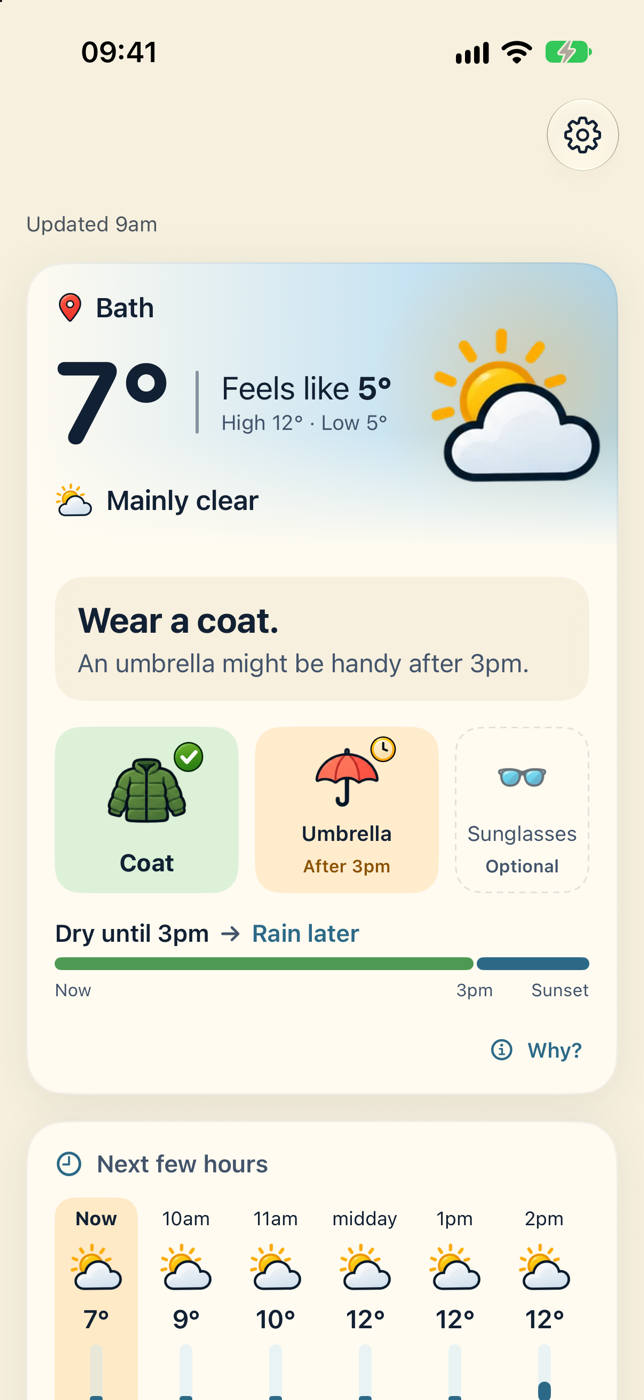
From top to bottom
- The header. Where the forecast is for, and when it was updated, for example Updated 9:40am. The gear button on the right opens Settings.
- The Now card. What to take for the next few hours. It's always first and can't be hidden.
- Tonight. Only after sunset.
- Your cards, in the order you choose: Next few hours, Laundry, Getting outside, Outdoor jobs and Tomorrow.
- Tips. Now and then a short hint appears, at most one a day. Each one goes away for good once you've done what it suggests.
- Choose cards. Opens Settings at the Cards section.
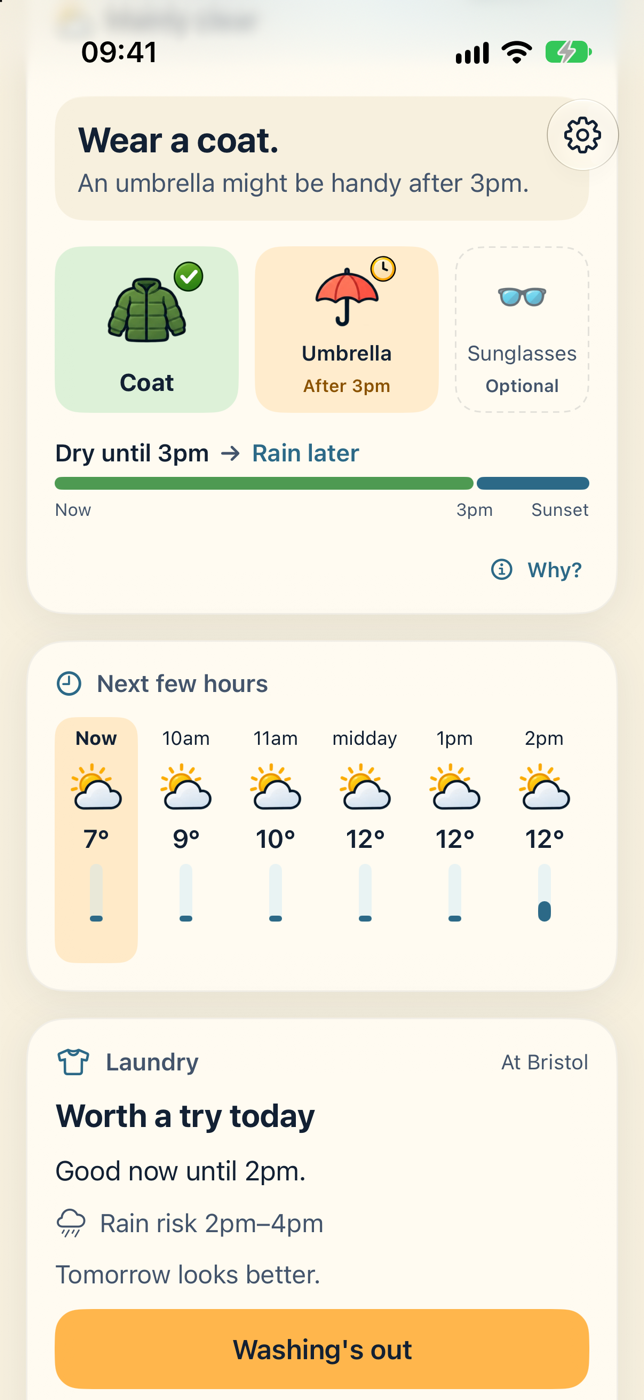
Everyday gestures
| To… | Do this |
|---|---|
| Get the latest forecast | Pull down on the screen |
| See why the app suggests something | Tap a card, a tile, or the Why? button. See Why this advice |
| Hide a card | Press and hold it, then choose Hide this card |
| Bring a card back, or reorder cards | Choose cards at the bottom, or Settings → Cards |
| Open Settings | Tap the gear at the top right |
Keeping it current
The forecast refreshes by itself when you open the app, if it's 30 minutes old or more, or if you've moved about a kilometre. Pulling down always fetches a fresh one. The screen also updates every minute, so times like "Dry until 3pm" stay true while you're looking at it.
If the forecast is more than an hour old, the header changes to Forecast from 9:40am. Pull down to refresh. If the app couldn't reach the internet, it says so and keeps showing the last forecast it had. See Troubleshooting for more.
On iPad and in landscape
The screen turns with your phone. On wider screens the cards sit in a single, easy-to-read column.